RemeMate FAQ
How RemeMate works, feature by feature: collect the words you meet, review them, and use them in your own writing. Illustrated answers for new users.
1.1 What is RemeMate, and who is it for?
In one sentence
A personal tool that replaces “cram a generic word list” with collect what you meet, review it on a schedule, then use it in a sentence, a short diary, or a language-exchange recap.
How it works
It fits people who already read, listen, or speak, but lose words and cannot bring them back out. After you sign in, Home is today’s due reviews. Vocabulary is where words enter. Writing is output. Language partners are one-to-one recaps, not a feed.
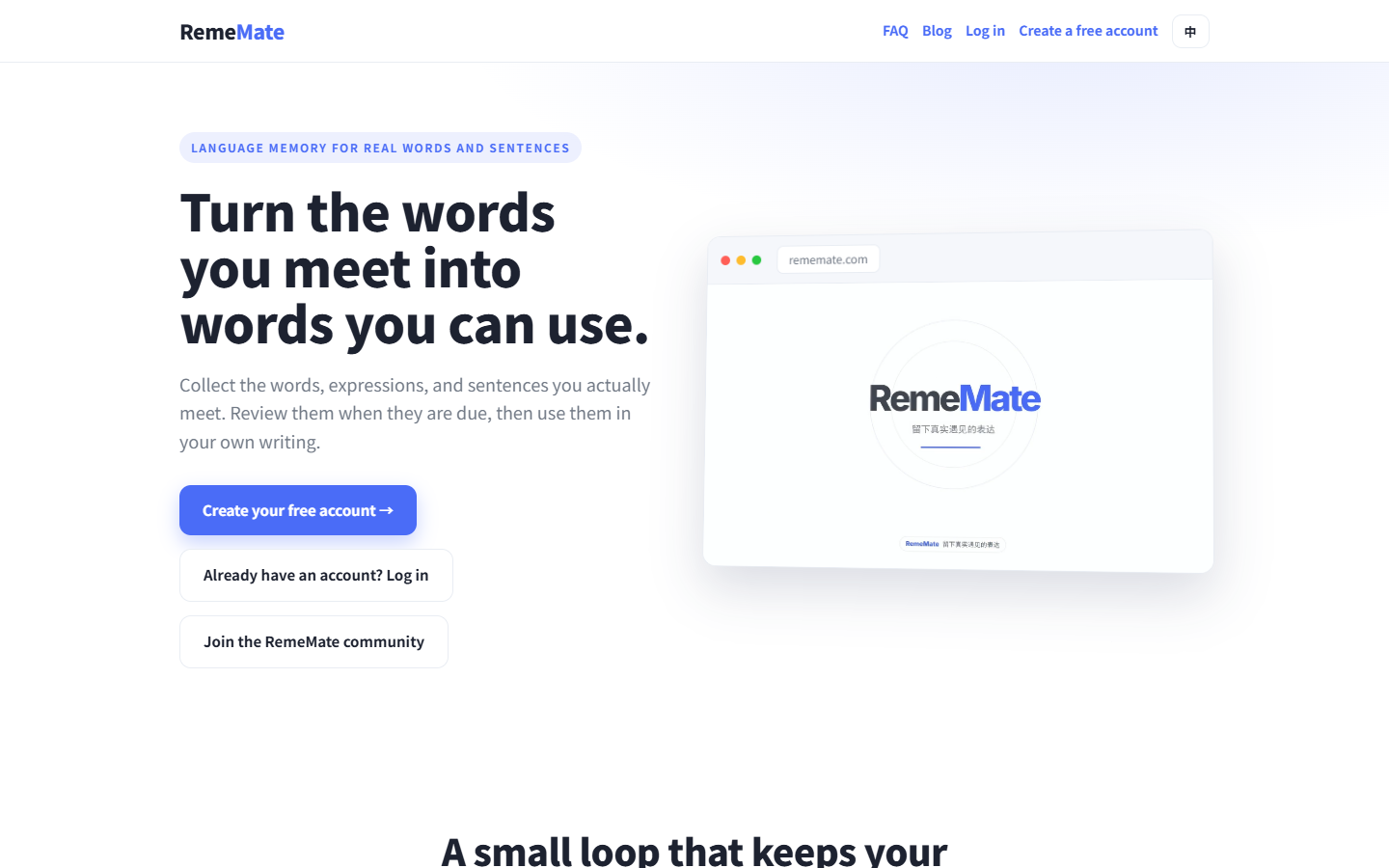
The public intro is on the home page.
Things to know
This is a web vocabulary and review loop. It is not a course, a chat app, or a replacement for a human teacher.
If something goes wrong
If the landing page will not load, try another browser or a refresh. Still stuck? See 8.6.
1.2 How do I register and sign in?
In one sentence
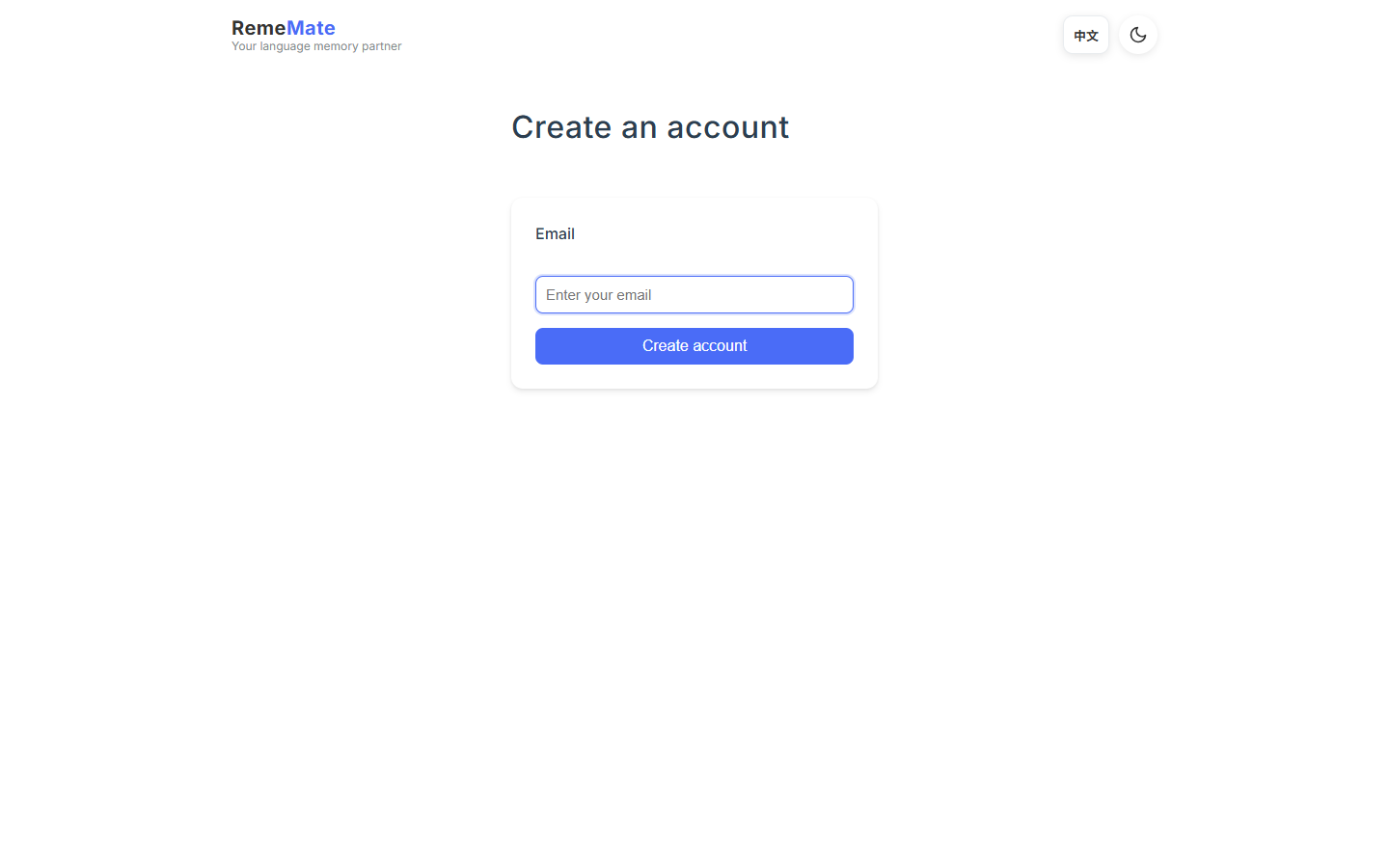
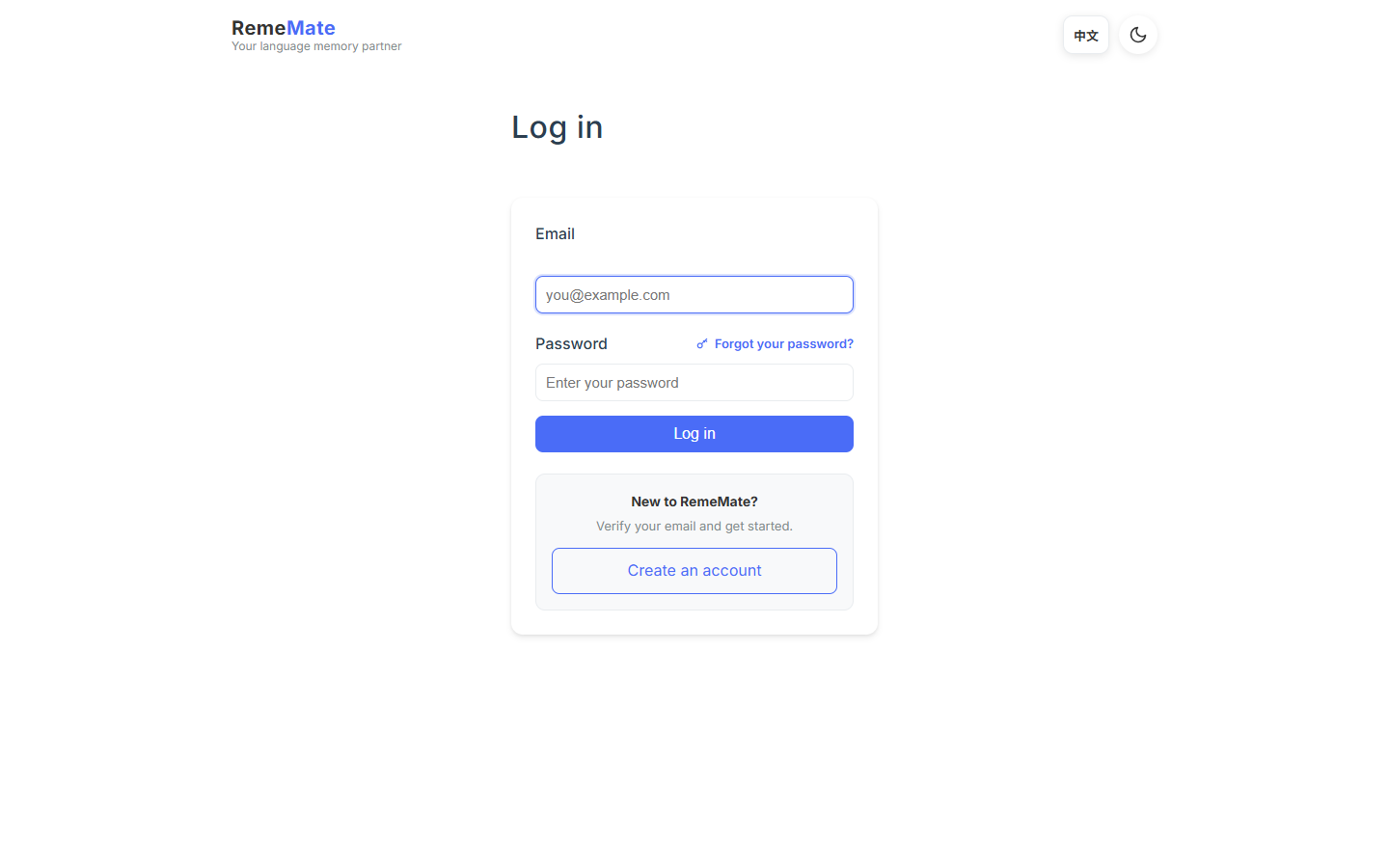
Create an account with email, confirm the message, then sign in; use the reset form if you forget the password.
How it works
1. Open Register and enter an email and password. 2. Open the confirmation link in your inbox. 3. Sign in on the login page with the same email.
Things to know
Public registration is an operations switch. When it is off, only sign-in stays visible. A working register page today is not a promise that it stays open forever.
If something goes wrong
Missing confirmation mail or a lost password: see 1.5.
1.3 How do I set the interface language and the language I am learning?
In one sentence
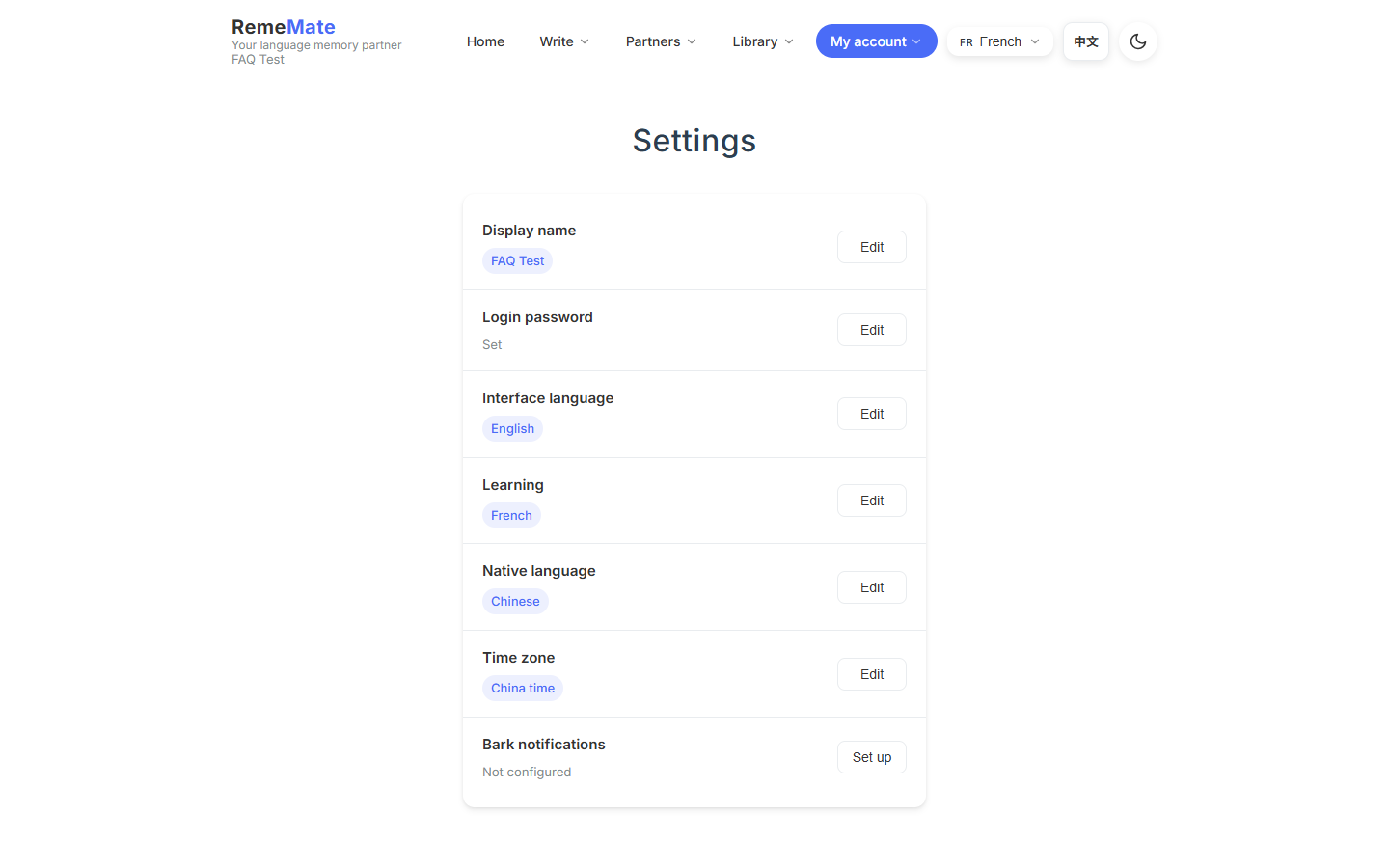
The interface is Chinese or English; learning languages are chosen in Settings and are separate from the UI.
How it works
- Interface: the control in the top corner switches Chinese / English.
- Learning languages: after login, open Settings, tick what you are studying, and choose a native / explanation language.
- AI: Chinese, English, French, Japanese, Korean, Spanish.
- Reader: Chinese, English, French, Japanese.
Things to know
German and Russian stay in old data but are hidden from new entry points. Switching learning language does not delete words. See 6.2.
If something goes wrong
If a language is missing from Settings, check the lists above. Reader lookup gaps: 8.5.
1.4 What are the main entry points, and can I use it on a phone?
In one sentence
It is a website in the browser. There is no app to install. A phone browser works.
How it works
After login the top bar is roughly Home (review), Writing, Language partners, Vocabulary, and Me. The same URLs serve desktop and a responsive mobile layout.
Things to know
There is no native app, mini-program, or desktop client. Use any current browser.
If something goes wrong
If a toolbar covers a button on a small screen, rotate the phone or zoom. Load failures: 8.6.
1.5 I forgot my password or never got the confirmation email
In one sentence
Use Forgot password to reset; for confirmation mail, check spam, resend, then ask an admin.
How it works
1. On the login page, open Forgot password and enter the registered email. 2. Set a new password from the link in the message. 3. If the account is still unconfirmed, use the resend action on the page.
Things to know
The site will not tell you whether an email is already registered. Mail can land in spam or arrive a few minutes late.
If something goes wrong
Check the spelling, wait, then look in junk. If nothing arrives, write to an admin and say which address you used.
2.1 How can words get into RemeMate?
In one sentence
Add a word by hand, let AI fill fields, import from text / CSV / PDF reading, or take expressions from a recap or a partner packet.
How it works
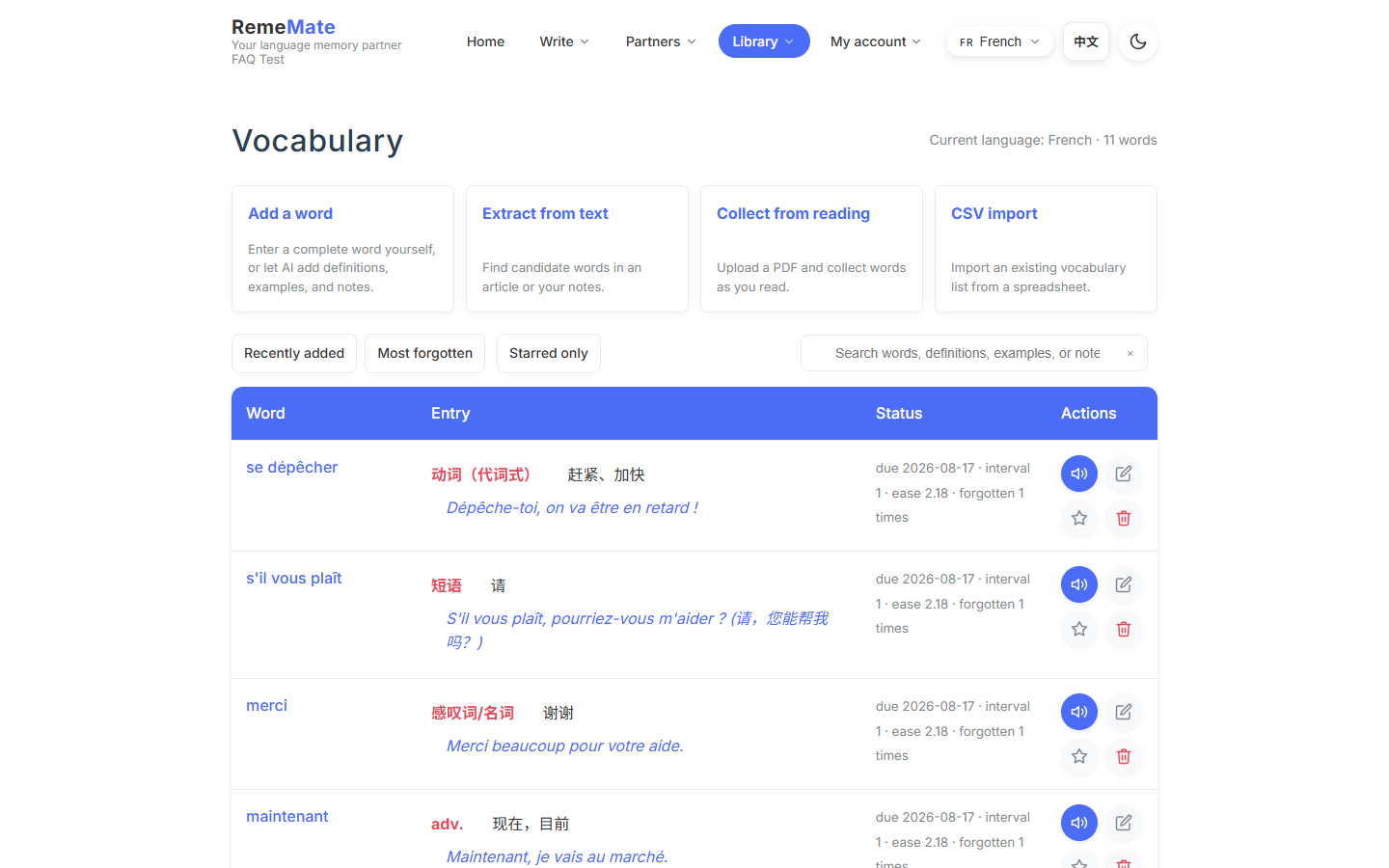
- Manual add: Vocabulary → Add word. Goes straight into the list.
- AI fill: generate a definition, example, or note while adding.
- Text extract / CSV import: candidates first, then you accept them.
- Reading: open a PDF, look up a word, add it to study.
- Recap “for me” items and incoming partner packets: review as candidates, then keep them.
Things to know
“Import” usually means a CSV batch. The paths do not share the same review step or quota. Do not assume there is only one intake.
If something goes wrong
If a word is missing, check the current learning language, then look at the candidate queue you have not committed yet.
2.2 What do I fill in when I add a word by hand?
In one sentence
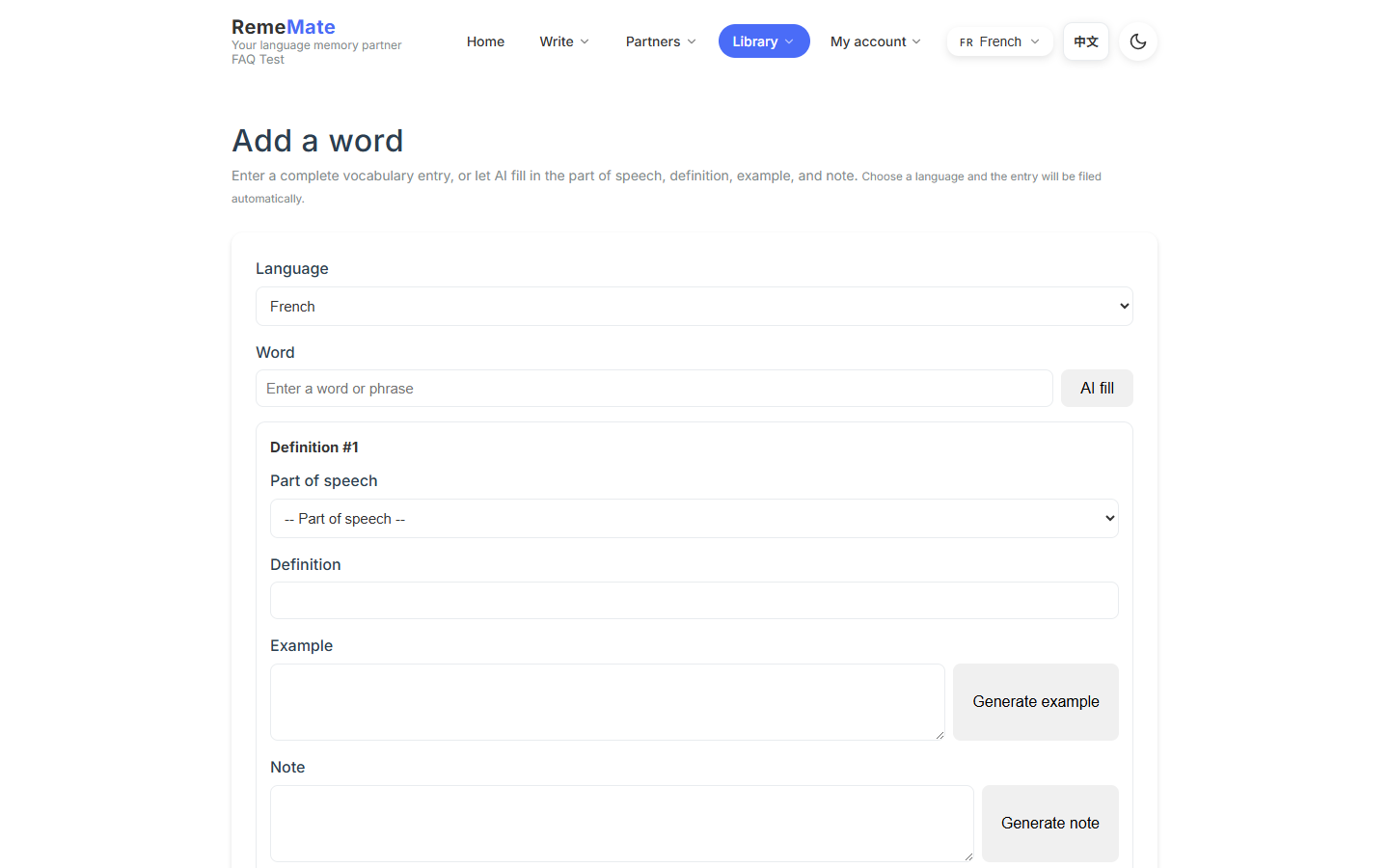
You need the word plus at least a part of speech or a meaning; example and note are optional, and AI can draft them.
How it works
Open Vocabulary → Add word. Pick a language, type the word, and add one or more senses. You can run AI fill on the whole entry or generate an example or note on one sense. Save writes the word into the list and makes it reviewable. There is no candidate step.
Things to know
An existing word in the same language is not overwritten with the new glosses. AI fill uses the daily AI quota.
If something goes wrong
If save fails, check that a learning language is selected and the word is not empty. AI fill errors: 8.1.
2.3 How do text, CSV, and PDF import work?
In one sentence
Choose a language and a file or passage, review the extracted candidates, then commit them into the list.
How it works
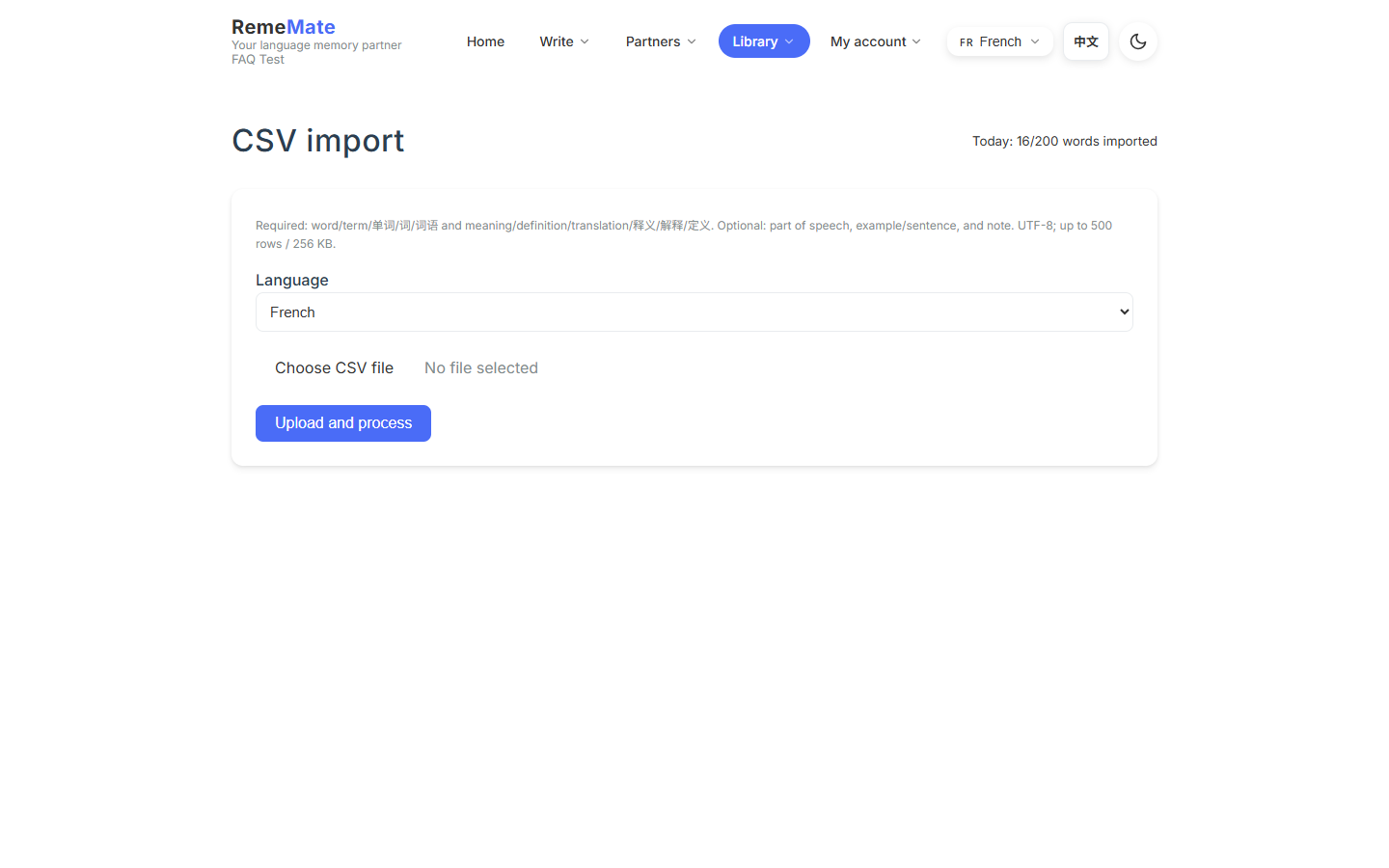
- CSV: Vocabulary → CSV import. UTF-8, comma-separated, header row required. You need a word column and a meaning column (
word/termandmeaning/definitionwork). Part of speech, example, and note are optional. - Text extract: paste prose; AI picks likely unknown words; then candidates.
- PDF: use the reader, look up a word, add it to study. The whole file does not become a list in one shot.
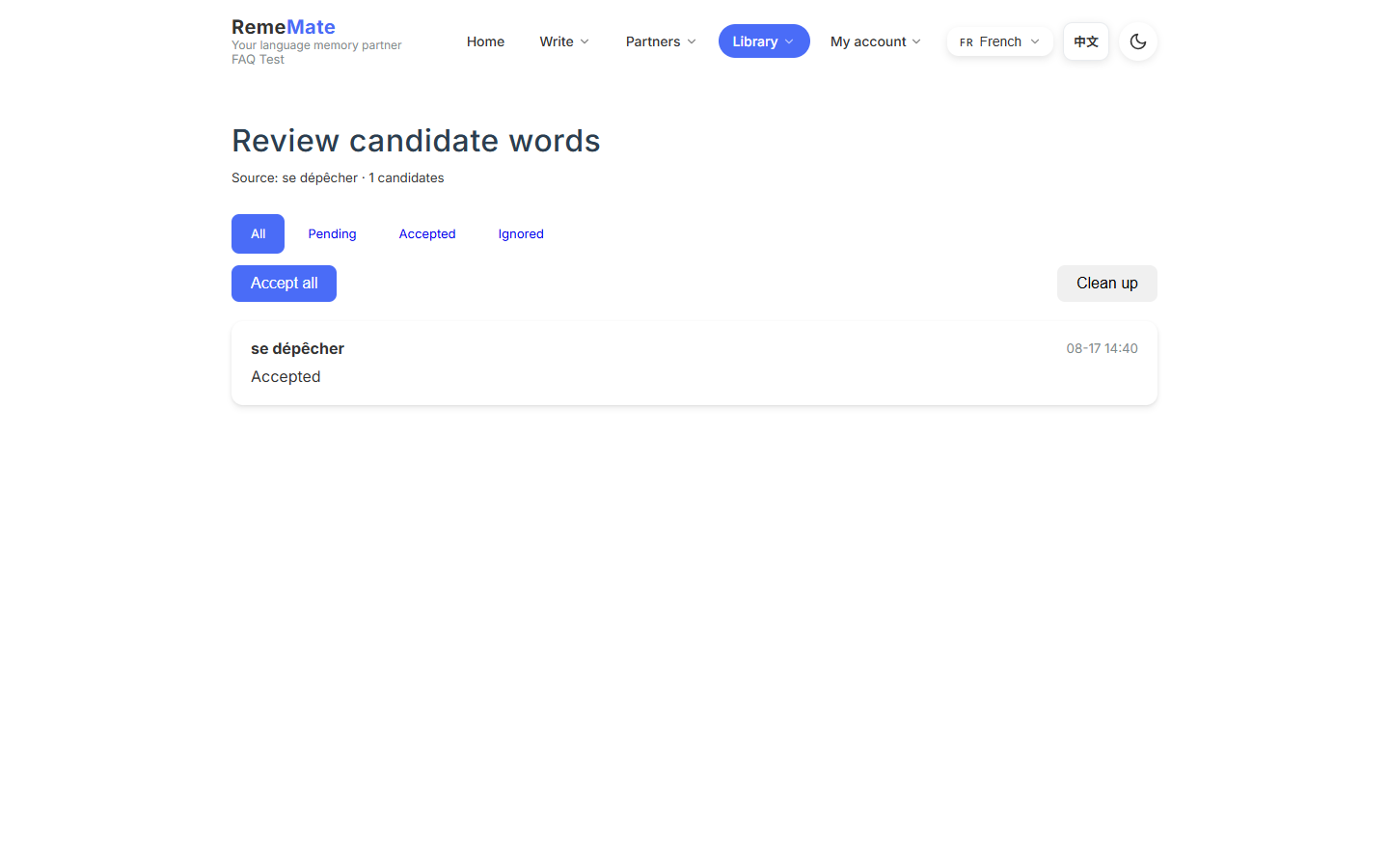
After upload or extract you get a processing page, then candidates. Nothing sits in the vocabulary list until you commit.
Things to know
Only .csv is accepted. There is no one-click Excel, Anki package, or TSV importer. Save as UTF-8 CSV first. A daily import cap is shown at the top of the page. New committed words are due immediately in that language.
If something goes wrong
- Unsupported format: save as UTF-8, keep a header row, and include word and meaning columns.
- File too large: split the CSV.
- Processing stalls: leave the tab open, then reopen the processing page.
- Empty vocabulary: you may not have committed yet, or the UI language filter does not match the import language.
2.4 How do I collect words while reading?
In one sentence
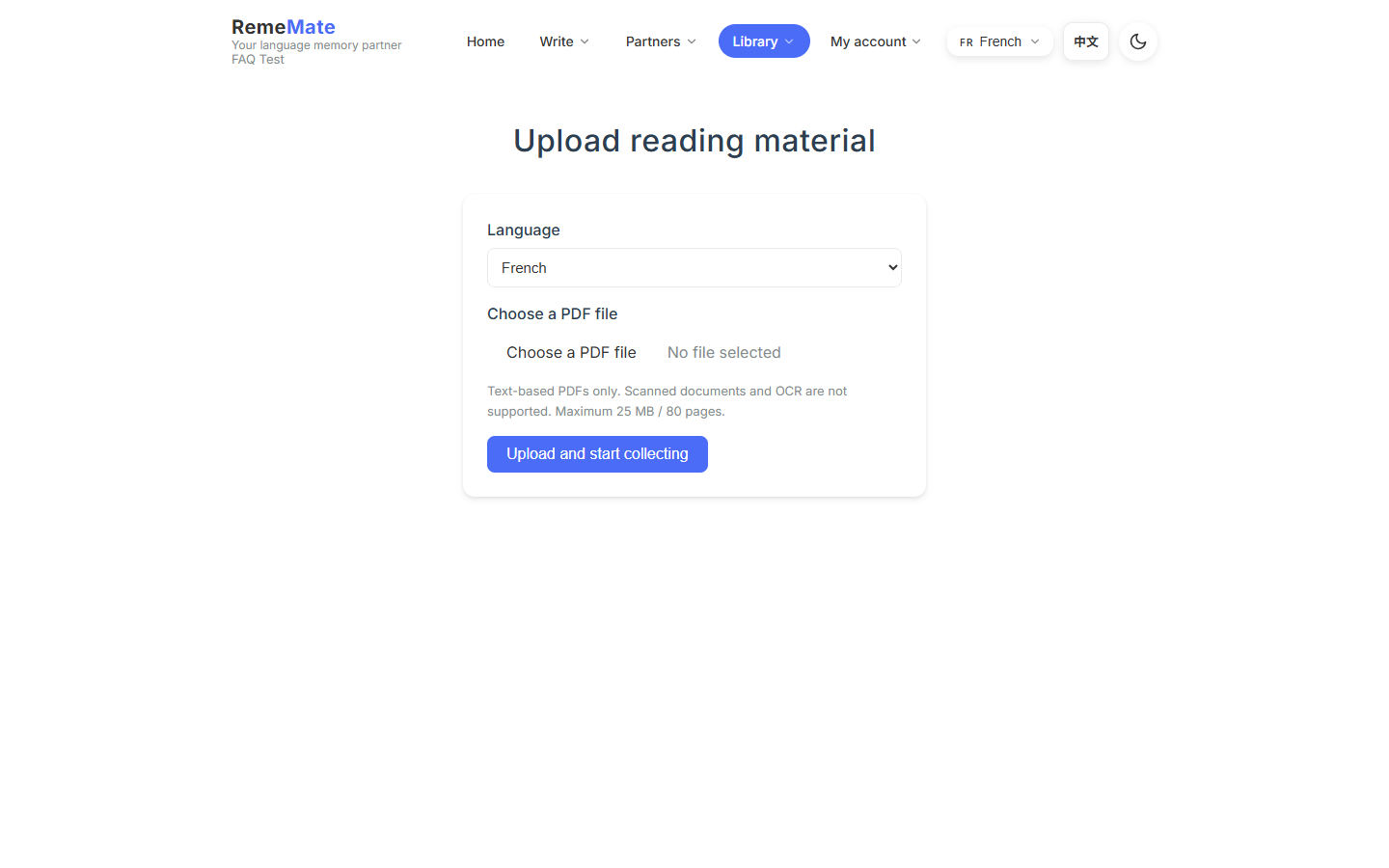
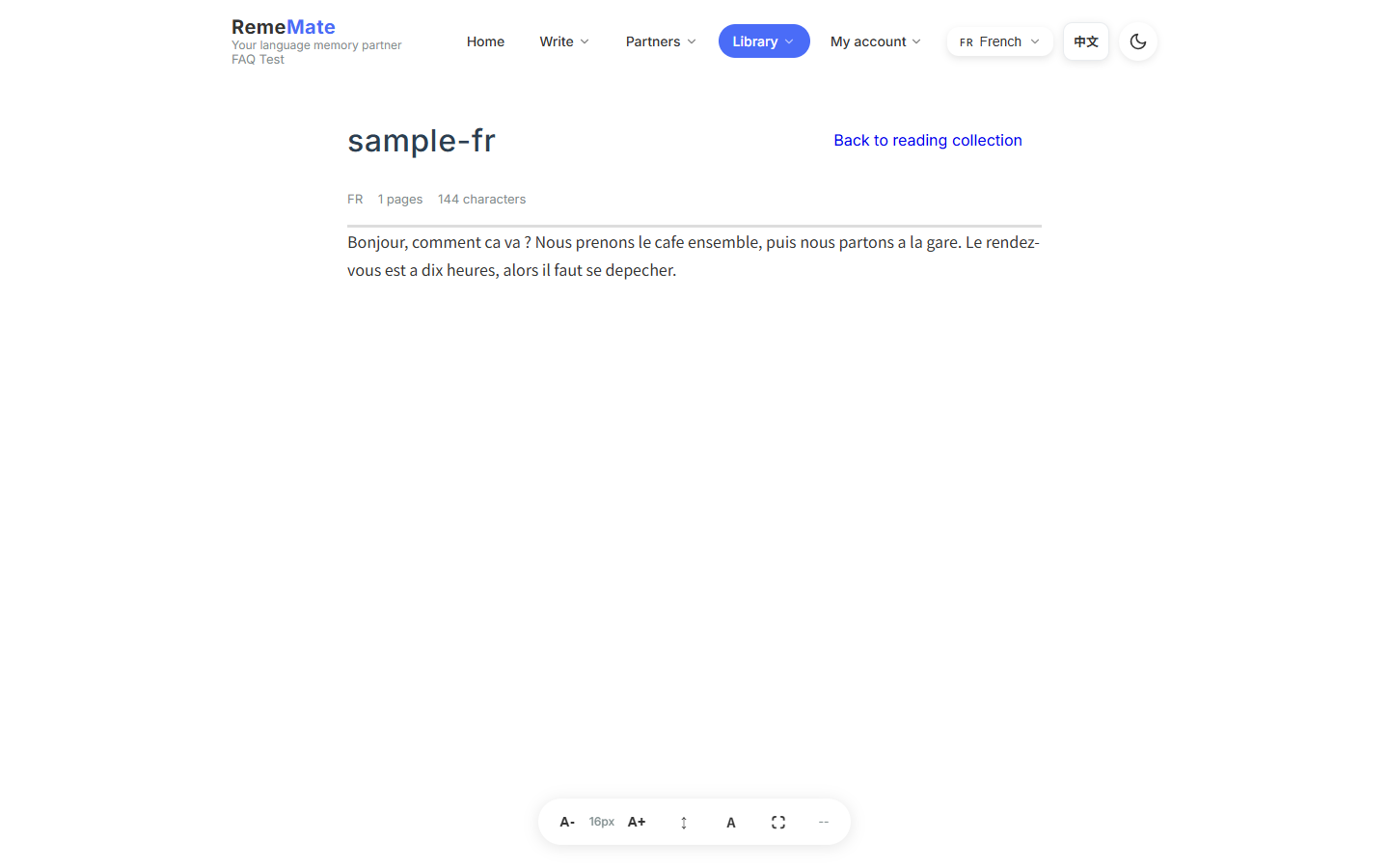
Upload a PDF, tap an unknown word for a local lookup, add it to study, then accept it from candidates.
How it works
Vocabulary → Reading. Upload the file, select a word in the text, read the gloss, and add it to study. Those items belong to that document’s candidate set until you accept them. The reader supports Chinese, English, French, and Japanese.
Things to know
This is not an online dictionary API, and it does not auto-split a book into a word list. Words already in the list are flagged as existing.
If something goes wrong
No gloss for a language: 8.5. If an added word is missing, open that reading’s candidate page.
2.5 What is a candidate, and why do I have to review it?
In one sentence
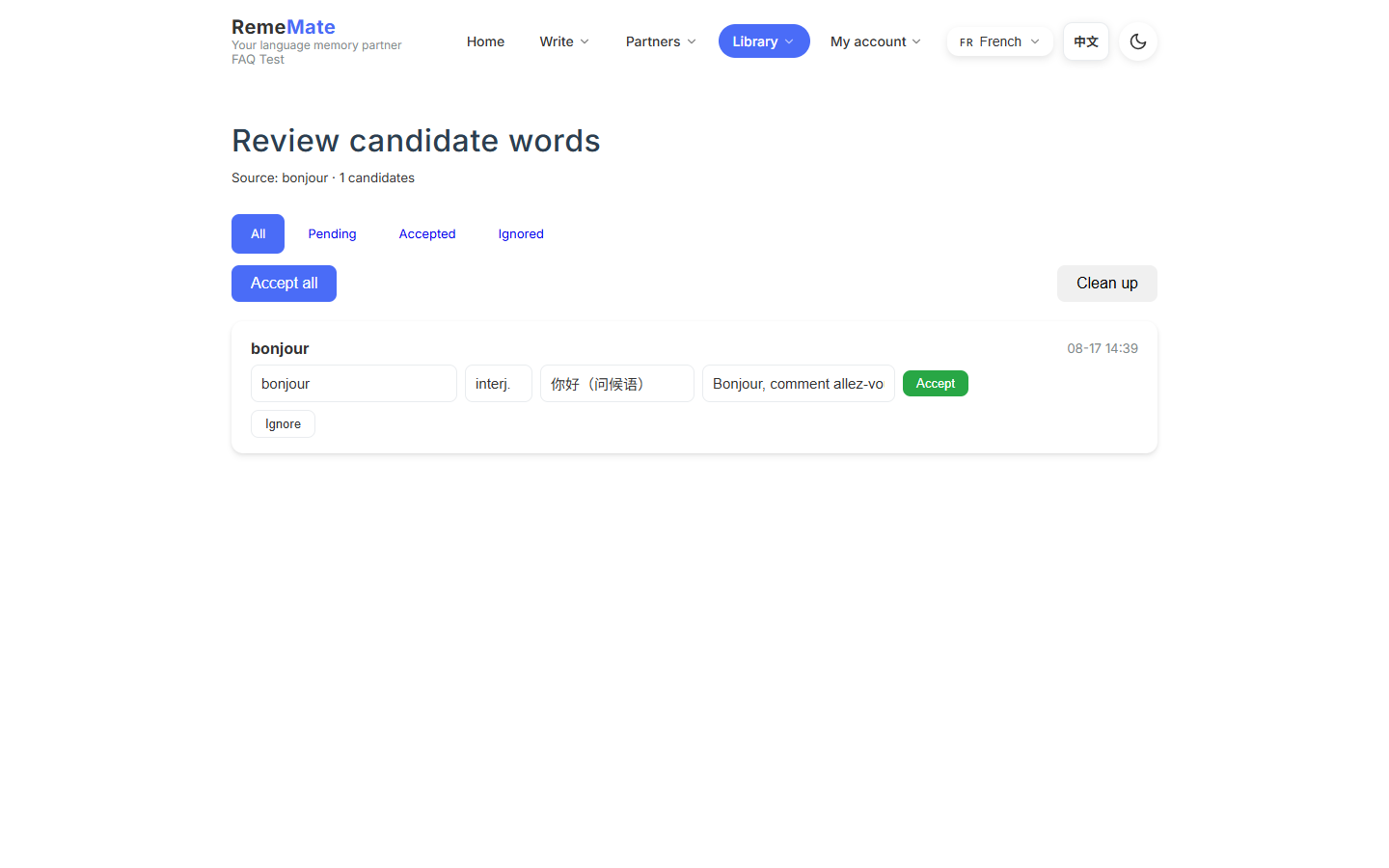
A candidate is pending. It enters the list and the review queue only after you accept it, so junk does not flood today’s cards.
How it works
CSV, text extract, reading, recaps, and partner packets create candidates. On the review page you accept or ignore. Manual add skips this step.
Things to know
Finished processing is not the same as committed. Ignore means “not this time,” not a permanent ban on the spelling.
If something goes wrong
If you reviewed items and still see an empty list, confirm you committed/accepted and that the learning language matches.
2.6 What is SessionPad?
In one sentence
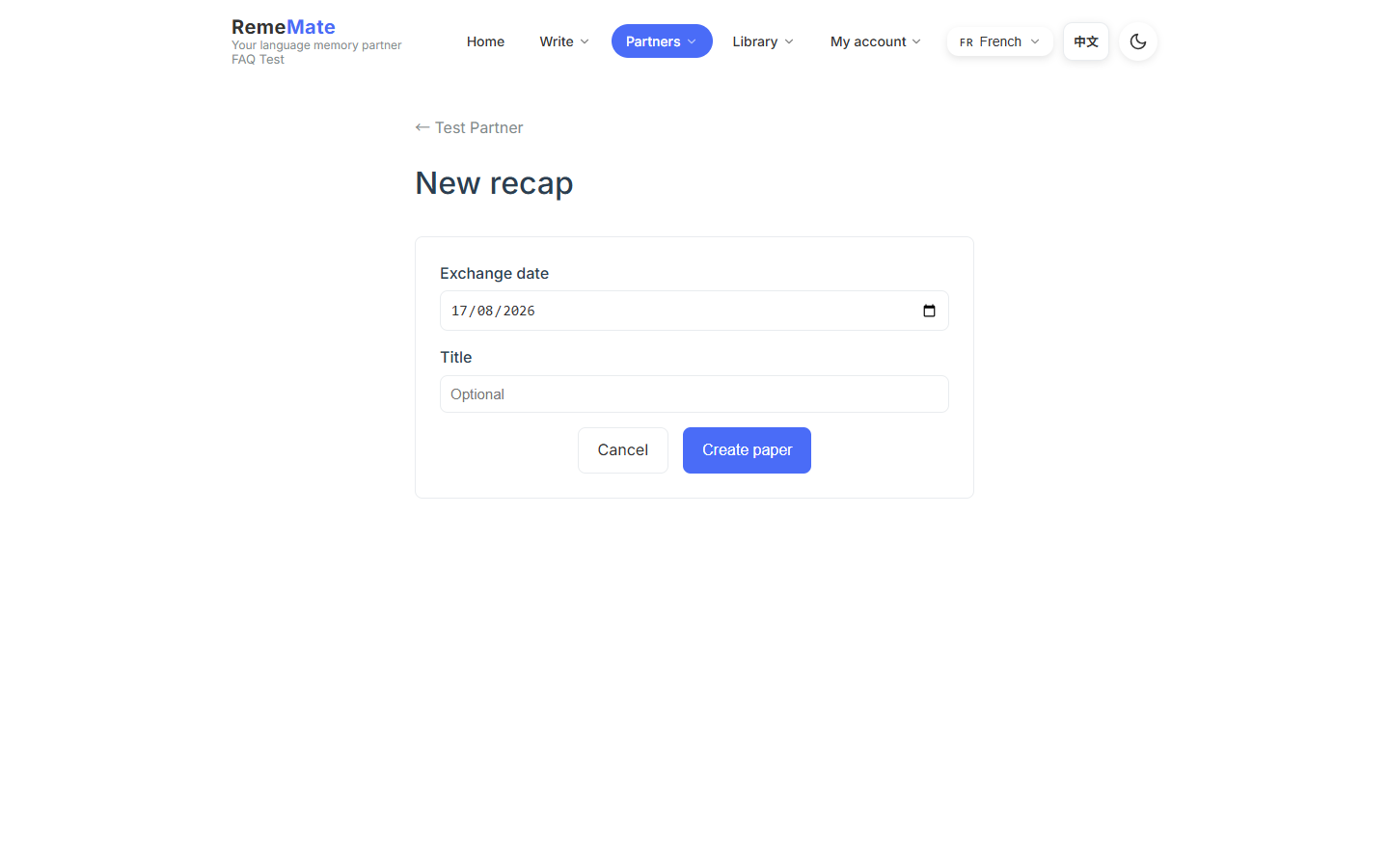
The recap sheet you keep around one language partner: “for me” can become your candidates; “for them” can become a filtered packet you send.
How it works
Open a partner, start a recap, and jot expressions during or after the exchange. Words and natural phrases in For me can go to candidate review. For them is sent only after you tick items. The other person must sign in and bind the relationship before they can receive a packet.
Things to know
It is not a chat room, a shared document, or a separate app. The product does not ingest a whole conversation into the list. Private partner notes stay private and are not sent to the AI.
If something goes wrong
If a packet will not send, confirm the bind and that you selected For them items. If candidates will not enter the list, accept them one by one on the SessionPad review page.
2.7 What can I do on the vocabulary page?
In one sentence
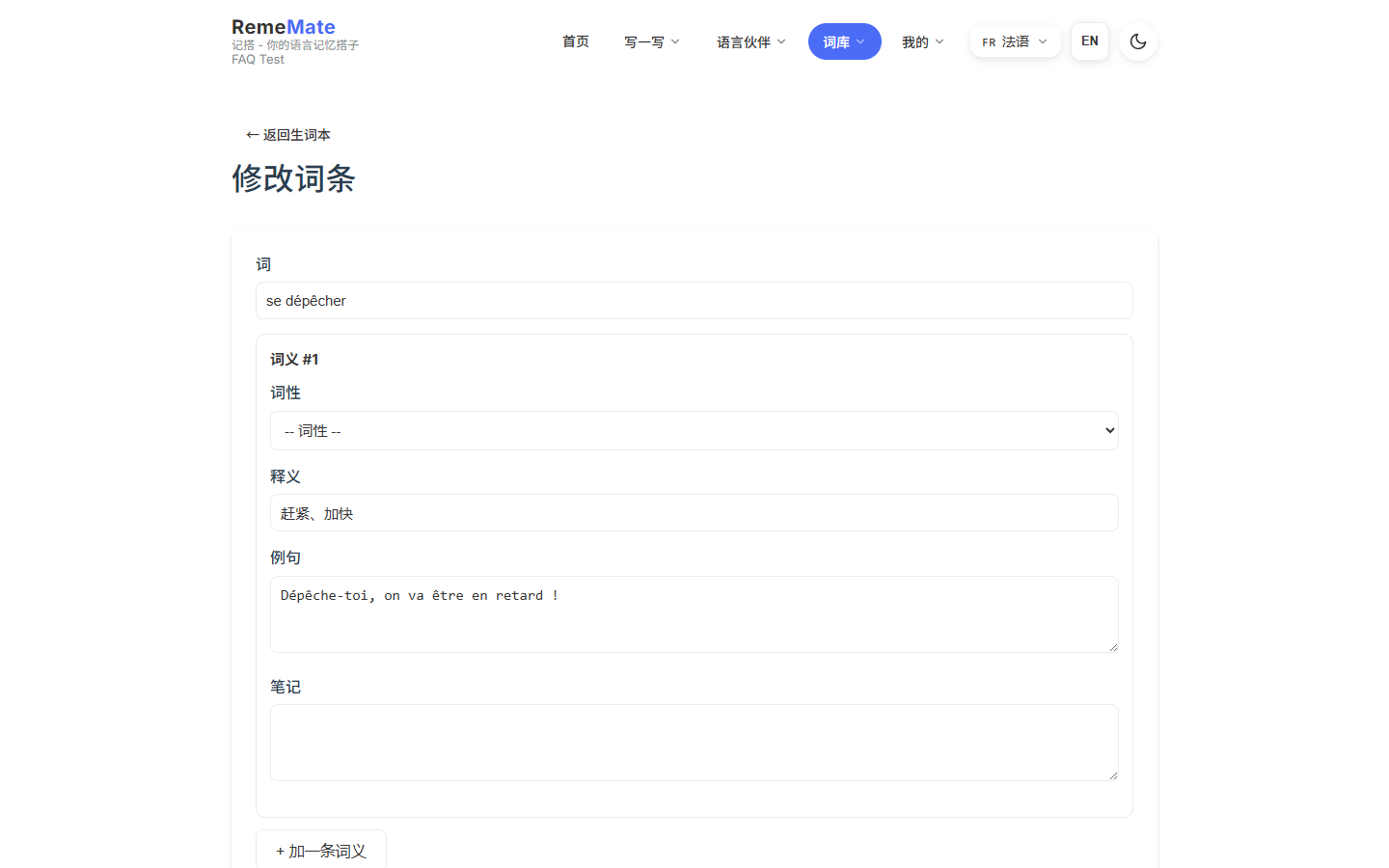
Browse words by language, edit or delete them, star them, and open a card for senses, examples, and notes.
How it works
The list can search, sort by due / recent / lapses, and filter to starred items. Open a word for detail; edit if a gloss is wrong. Deleting a word also deletes its review log.
Things to know
Lists are implicit per learning language. You do not create named decks. Stars toggle on the list or on a review card.
If something goes wrong
Switch to the language the word belongs to, then search the written form.
3.1 How is review scheduled?
In one sentence
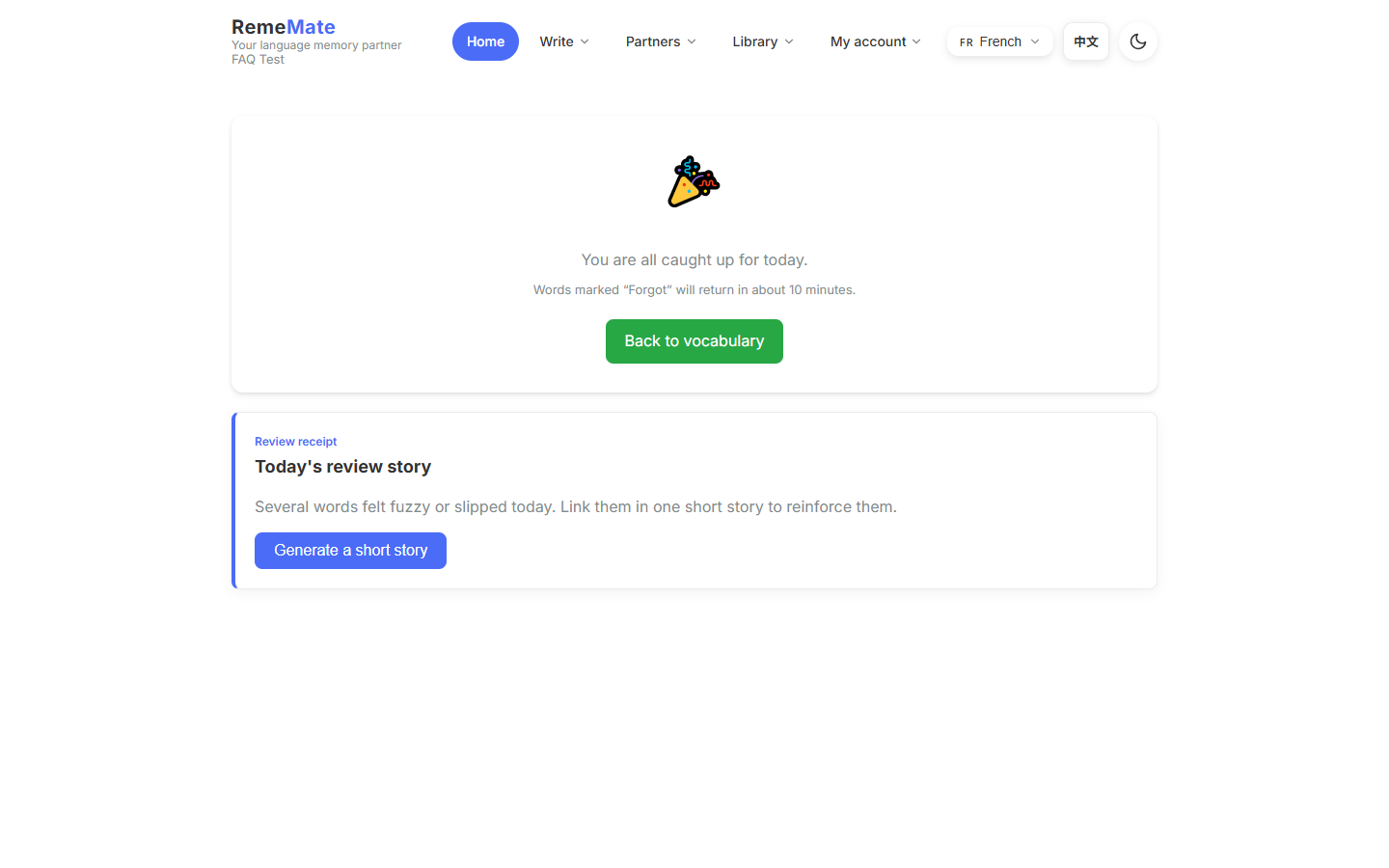
Words appear when they are due. Spaced repetition (SRS) uses your last grade. Home shows today’s queue for the current language.
How it works
After login, Home is the review card, not a dashboard. A dedicated review URL still exists. Newly added or newly committed words are usually due right away.
Things to know
The queue follows the active learning language. Switching languages switches which due words you see. The app does not automatically spread a large import across future days.
If something goes wrong
If Home says you are done, you may have finished the queue or you may be on the wrong language. Check Settings.
3.2 How do I grade a card, and what do the buttons mean?
In one sentence
Three grades set the next interval: Forgot, Not quite, Got it.
How it works
See the form first, open the definition, example, and note, then choose:
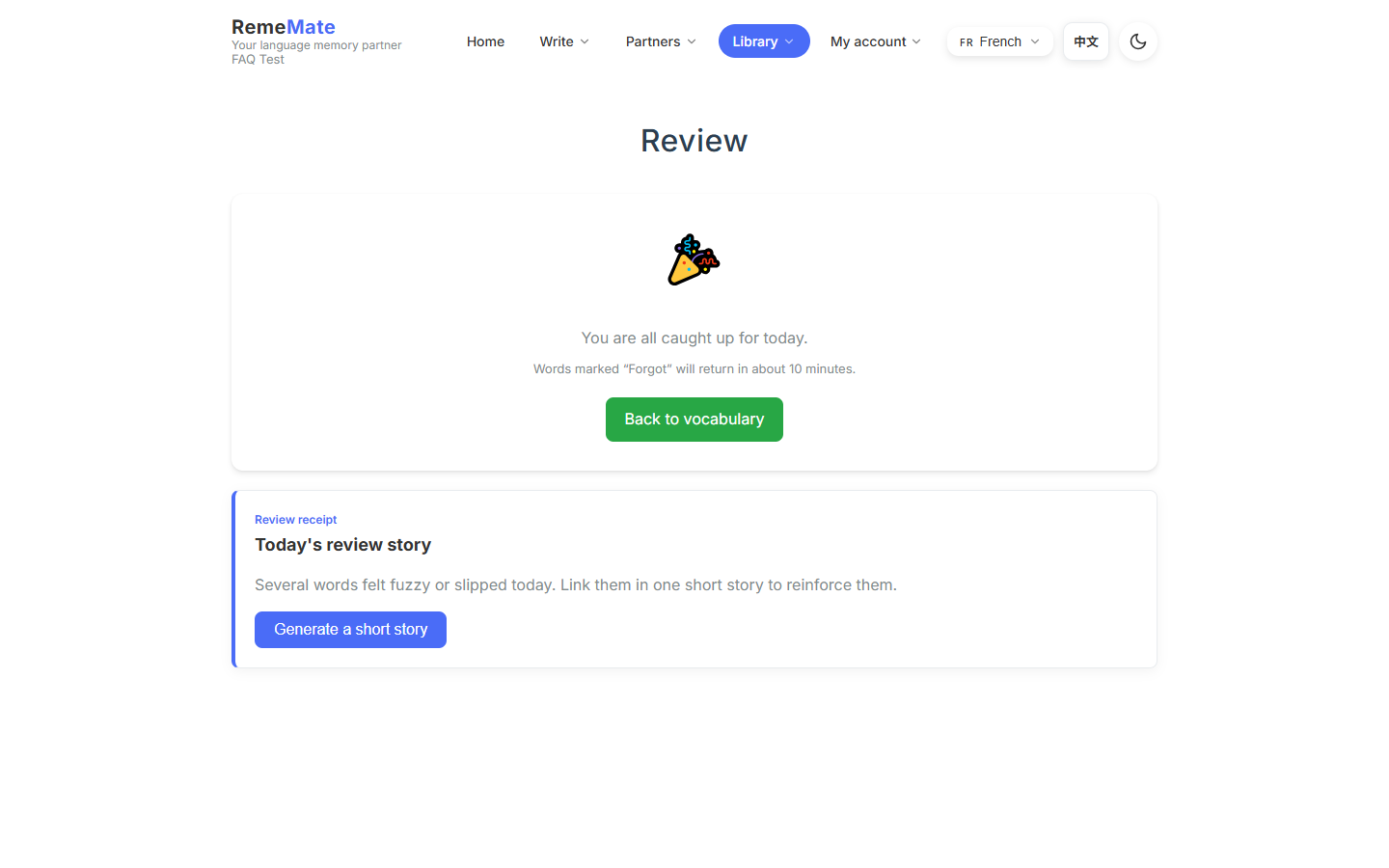
- Forgot — blank. The interval shrinks; the card returns in about ten minutes.
- Not quite — recalled with effort. It still counts as a pass; ease drops a little.
- Got it — easy recall. The interval grows.
Things to know
A due card is graded once. Looking back at the previous card does not score it again.
If something goes wrong
If you tapped Forgot by mistake, wait for the new interval. There is no separate undo.
3.3 What is the AI short story, and how do I use it?
In one sentence
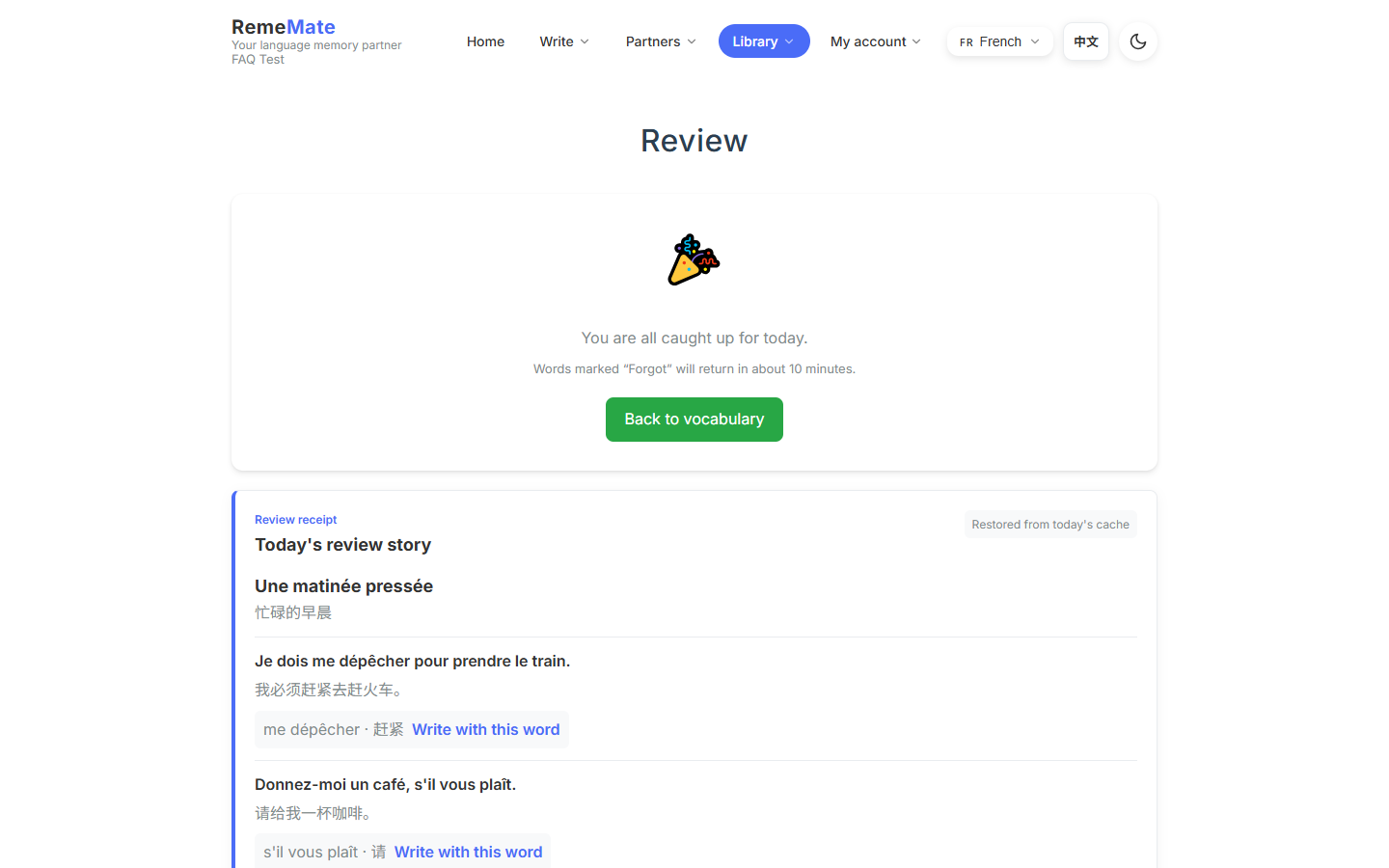
A short passage built from words you reviewed today — especially the shaky ones — that you can then take into sentence writing.
How it works
The entry appears after enough valid reviews in that language for the day. The story uses your terms. You can retry a failed generation and jump from a target word into writing.
Things to know
Generation spends AI quota. A failed story does not erase the reviews you already logged. Chinese and French fail more often than the other AI languages. See 8.2.
If something goes wrong
Retry once. If it still fails, skip the story and write a sentence by hand. Do not hammer the button.
3.4 What are Bark reminders?
In one sentence
Optional daily review pushes. You paste a Bark key in Settings and can send a test.
How it works
Settings → Bark. Save the key or URL, then send a test. A live notification opens a single-card review page.
Things to know
Bark is a third-party push service, not a RemeMate app notification. No due words can mean no push.
If something goes wrong
See 8.4.
3.5 Where do reviewed words go, and where is history?
In one sentence
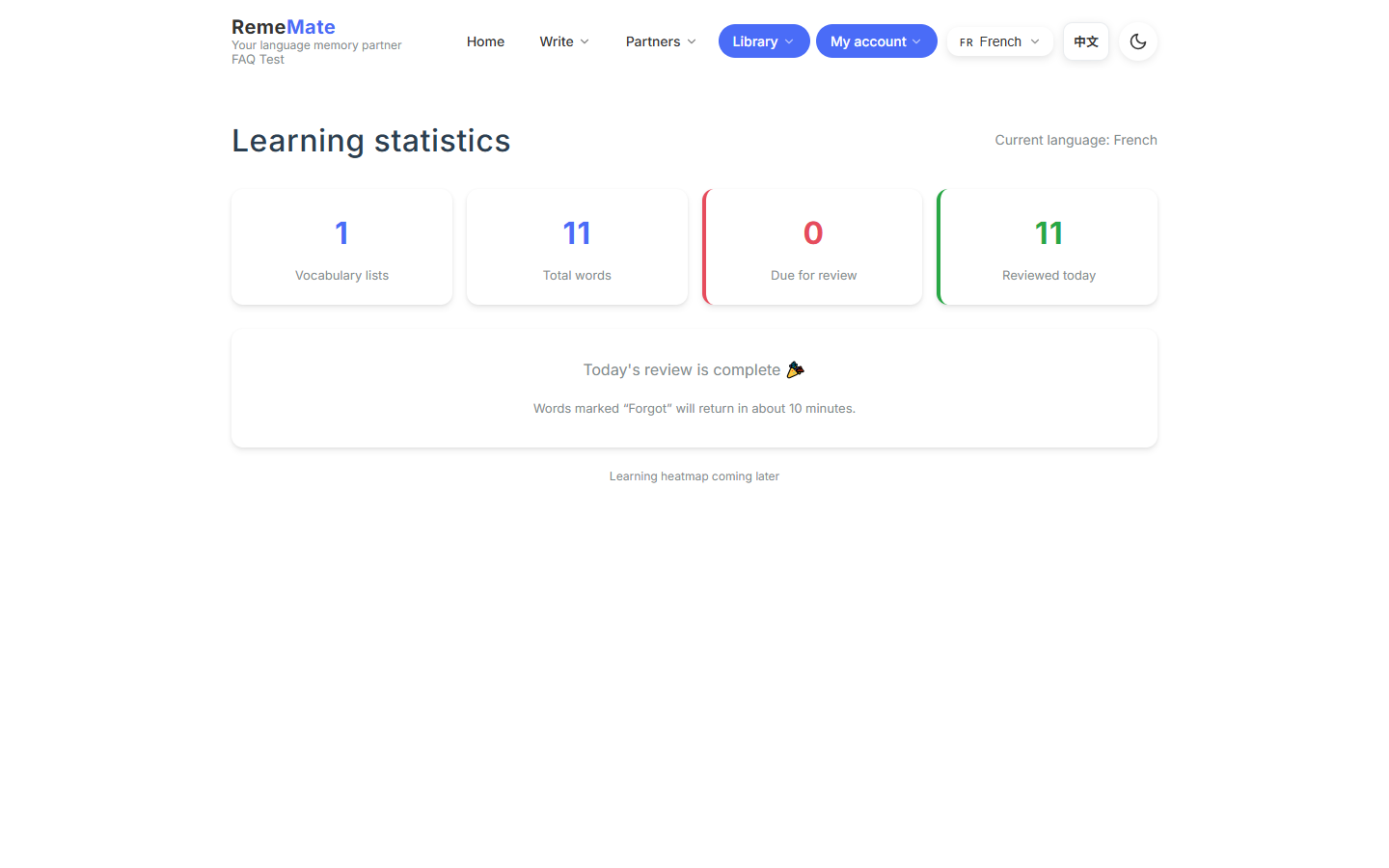
They stay in the vocabulary list with a later due date. Progress lives on the stats page.
How it works
Me → Stats shows review volume and other activity by language. You can still open any word in Vocabulary.
Things to know
Stats is a view, not a second library. Deleting a word deletes its review log.
If something goes wrong
Empty stats usually means no grades yet, or you are looking at another language.
4.1 How does sentence writing work?
In one sentence
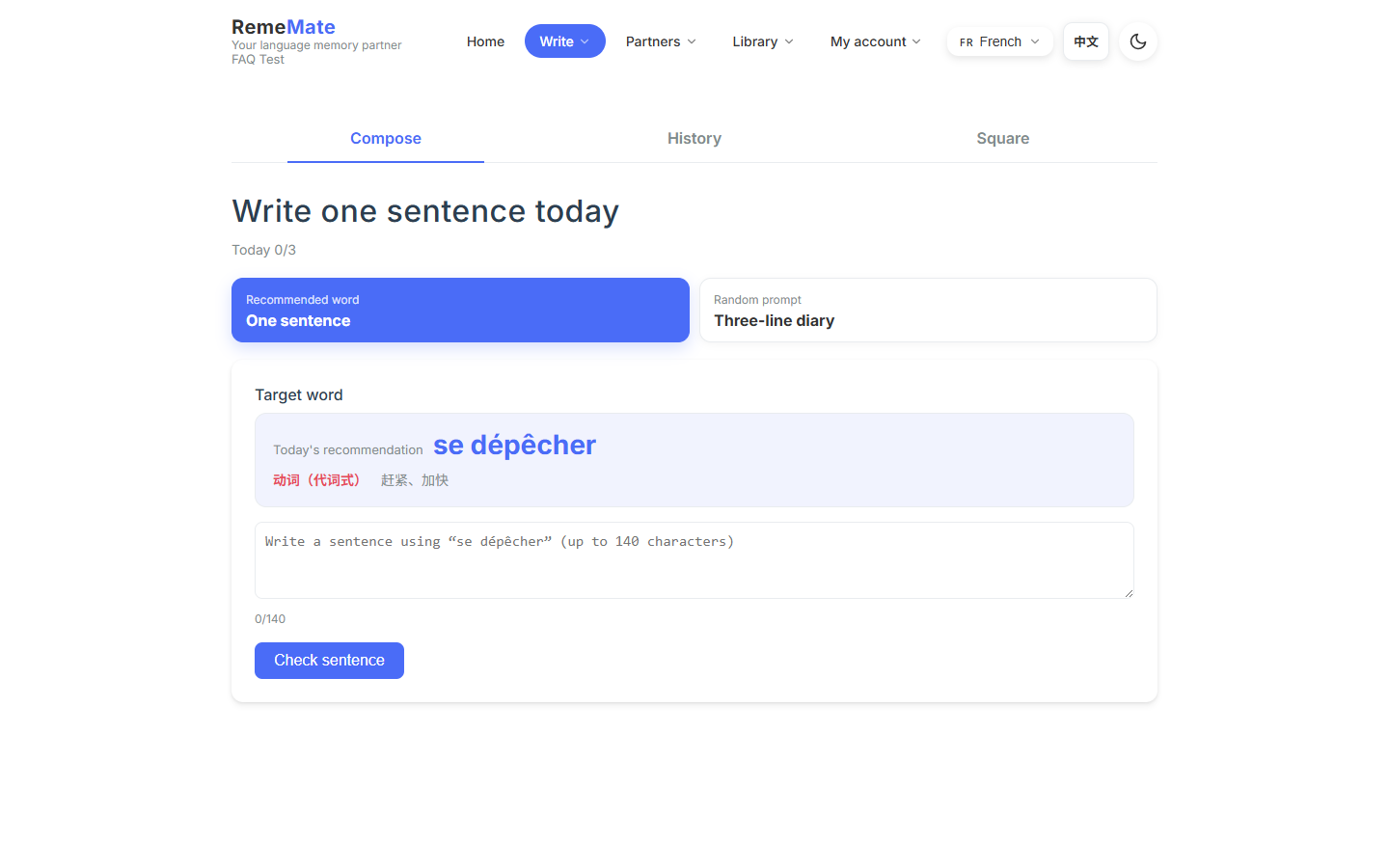
Write one sentence around a target word, let AI comment, then save if you want; you may later publish it to the square.
How it works
Writing → Sentence. The page suggests a due or related word. Submit only requests a correction. The result sits in that session until you save or discard. Saved items can be published from history.
Things to know
Feedback is written in your explanation language from Settings. A language mismatch is flagged. If AI is down you get a degraded result, not a silent save.
If something goes wrong
If you cannot submit, check today’s AI quota. Refreshing does not replay the last submit. Quota: 7.1.
4.2 What is the three-line diary?
In one sentence
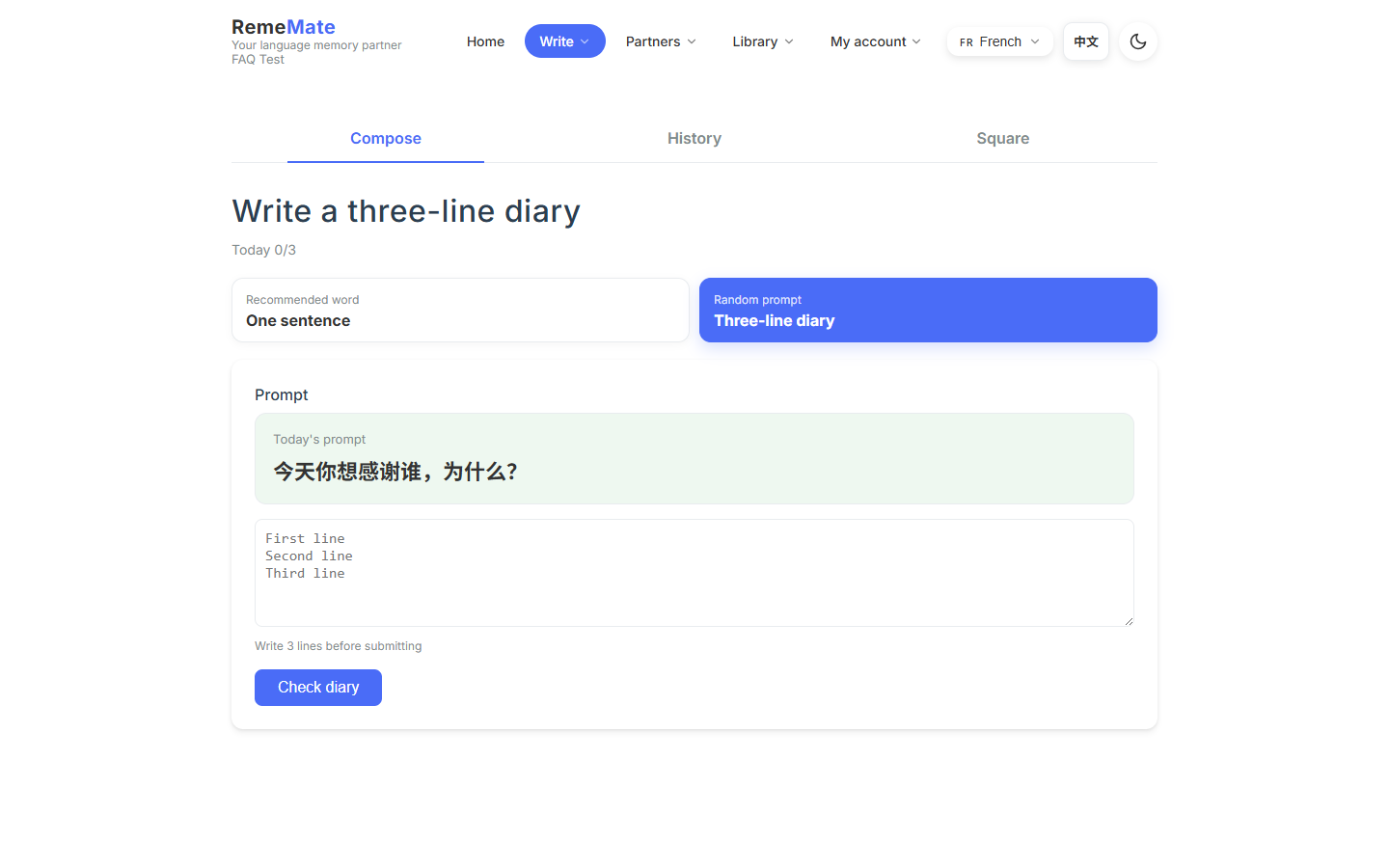
Three short lines that use recent words, with the same optional AI correction.
How it works
Switch Writing to diary mode, fill three lines, submit for comments, then save or discard. It is a smaller output than a single polished sentence.
Things to know
Diary and sentence share writing-related AI quota. Discarding keeps the text out of your history.
If something goes wrong
If a line is too long or the language does not match, follow the on-page message and submit again.
4.3 How does AI correction work? Will it replace my sentence?
In one sentence
Correction is advice. It does not rewrite your library, and your original line stays visible.
How it works
After submit you see comments, a translation, or error notes. Only an explicit save keeps the piece. The call spends quota.
Things to know
There is no speaking score and no pronunciation judge. AI will not overwrite an example already stored on a word.
If something goes wrong
Blank or broken output: discard, check quota, retry. See 8.1.
4.4 What is the sentence square?
In one sentence
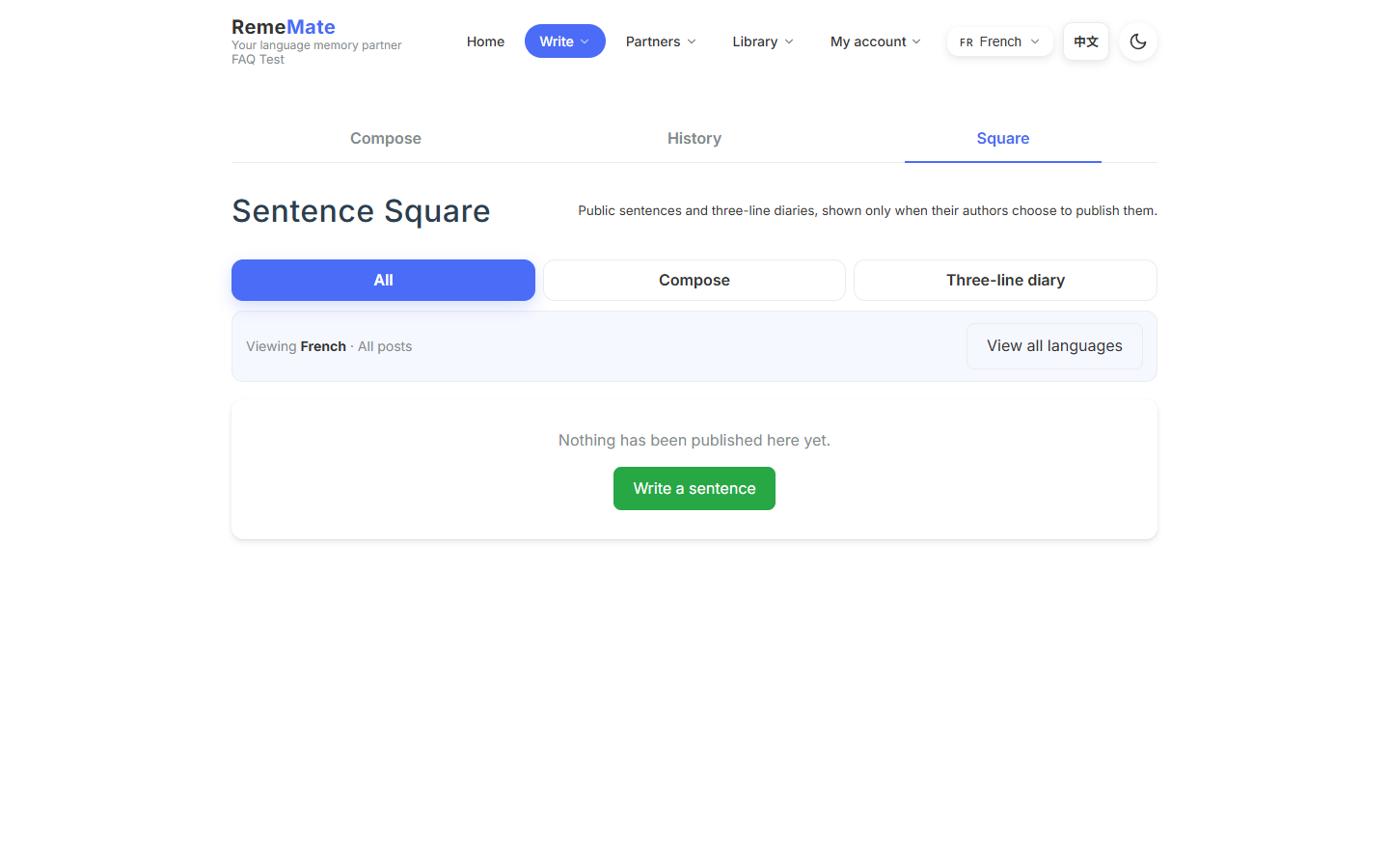
A board of published sentences and diaries that signed-in users can filter by language and like. Only items you choose to publish appear.
How it works
Publish from Writing → History, or open the square to browse. Authors can take their own posts down.
Things to know
The square is not an indexed marketing page. There is no comment thread and no report flow. Unpublished writing stays private.
If something goes wrong
If a piece is missing, confirm you published rather than only saved, and check the language filter.
4.5 How do I get back to collecting or review after writing?
In one sentence
A story can hand you a word for a sentence; after you save, return to Home or Vocabulary.
How it works
Typical loop: grade reviews → optional story → sentence or diary → save → Home or Vocabulary. Expressions kept from a partner recap re-enter the same review system after you accept them.
Things to know
Writing does not by itself change a word’s interval. A successful sentence save advances the next writing prompt to another word.
If something goes wrong
If the story cannot open writing, go to Writing yourself and use that word.
5.1 What is the partner feature, and how is it not social media?
In one sentence
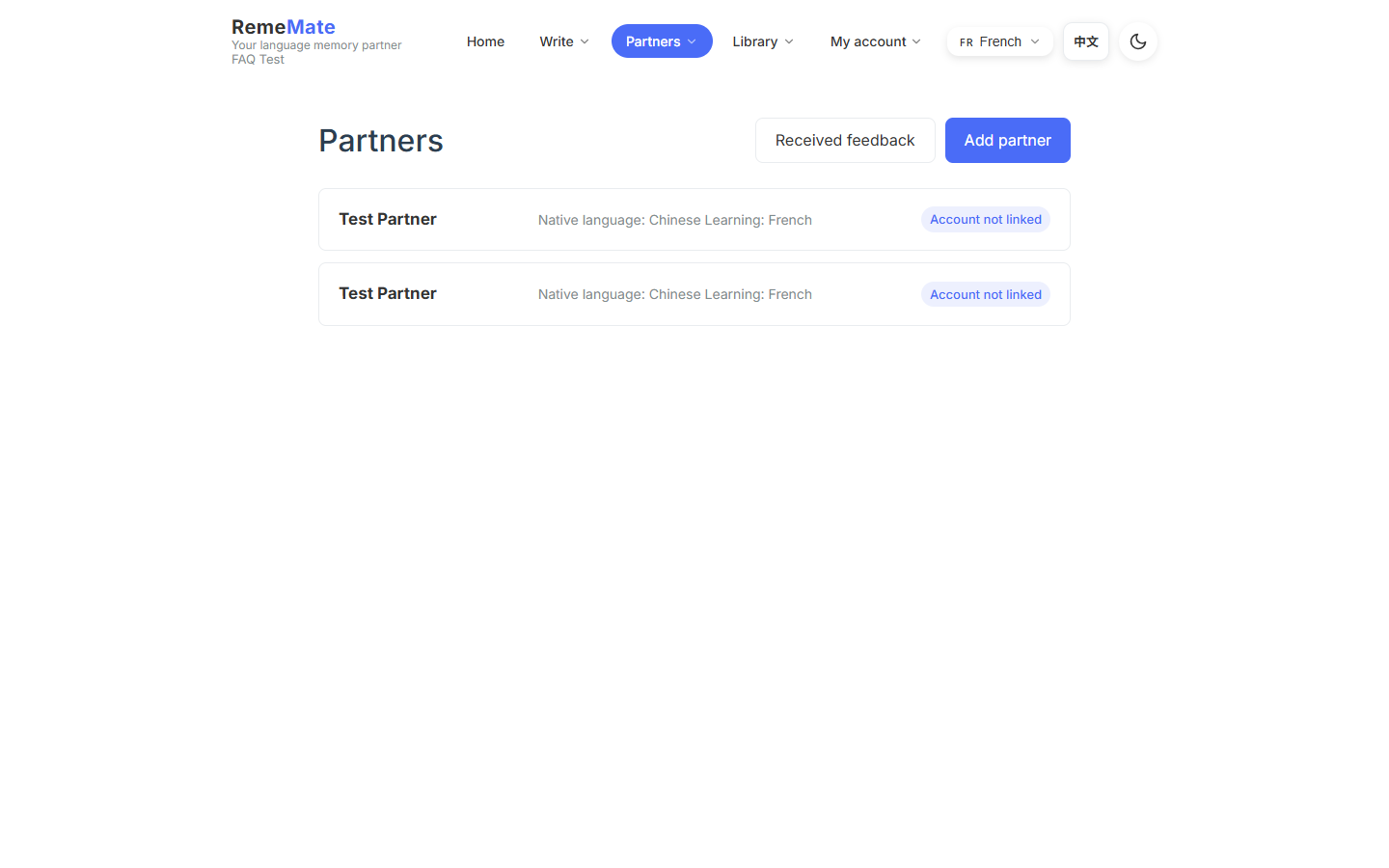
A private one-to-one language-partner relationship for recaps and feedback, not a public social graph.
How it works
Language partners lists people you created. You recap around one person and send packets. They do not see your vocabulary or past recaps by default.
Things to know
Not a chat room, group exchange, or live co-editor. An unbound profile exists only on your side.
If something goes wrong
An empty list means you have not created a partner yet. Invite only when the other person should receive packets.
5.2 How do I invite or bind a partner?
In one sentence
You create an invite link; they open it while signed in with that email and confirm.
How it works
On the partner profile, enter their RemeMate login email and generate the invite. After they confirm, future packets have a real recipient. They can also confirm a partner profile of their own so each of you keeps a private recap book.
Things to know
The invite does not reveal whether the email is already registered. Links expire. Binding does not copy your old recaps or word list.
If something goes wrong
If the link fails, generate a new one (the old token dies). You cannot bind yourself. The confirm page only pre-fills nickname and language direction.
5.3 What is a recap?
In one sentence
A learning sheet for that partner: For me stays private by default; For them is sent only after you filter it.
How it works
- For me: words you want, natural phrases they used, private notes, topics for next time.
- For them: expressions worth keeping, corrections, more natural phrasing, practice ideas.
You can jot during the talk or tidy it afterwards. Only For me words/phrases and sentences/natural lines can become your candidates.
Things to know
You do not co-edit one shared document. Private notes stay private. The system does not turn a whole conversation into words by itself.
If something goes wrong
If an item will not enter your list, confirm it sits under For me as a word or natural phrase, then accept it on the candidate page.
5.4 How do feedback packets work?
In one sentence
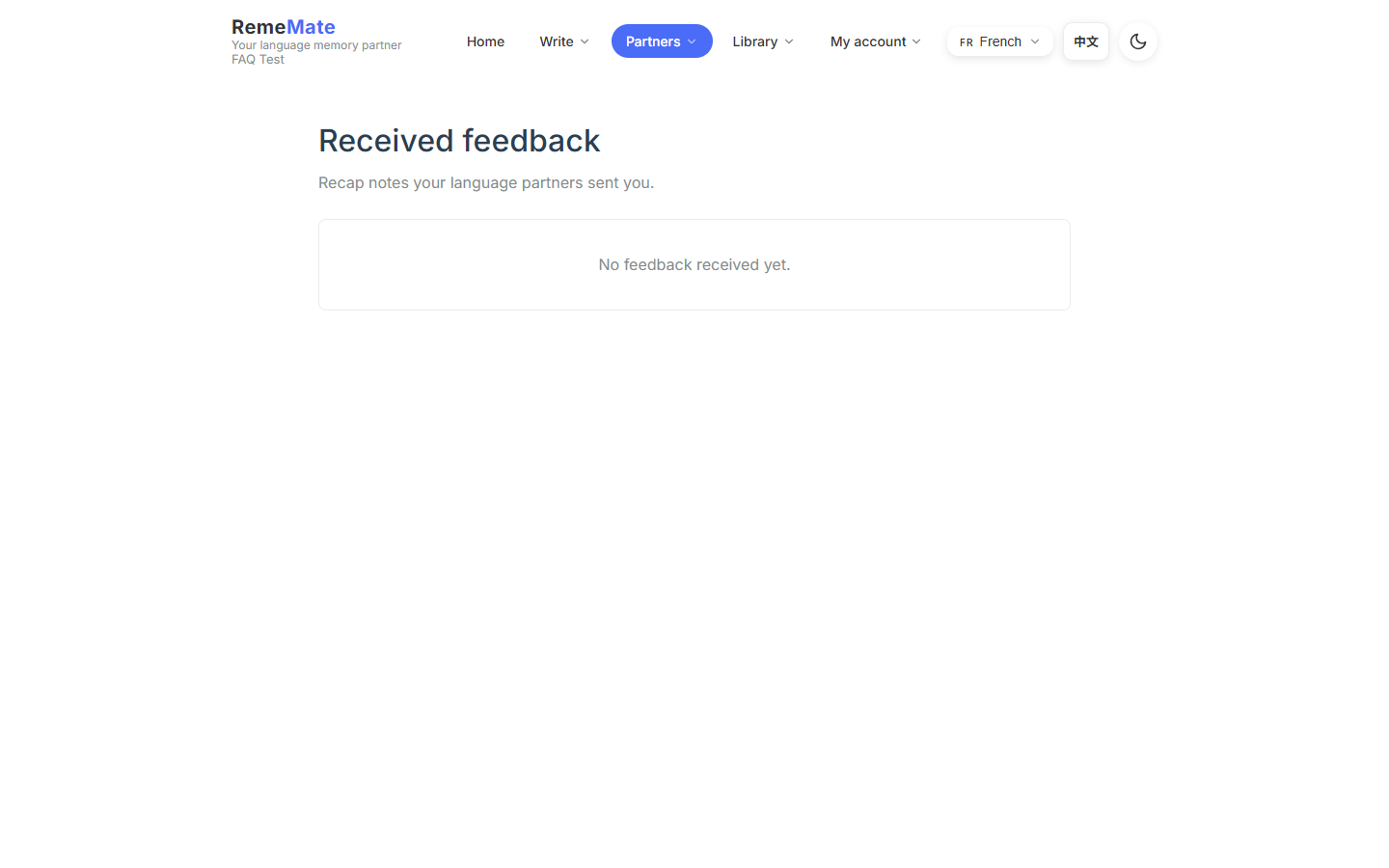
The other person gets a snapshot. They can thank you once and may pull expressions into their own candidates.
How it works
The sender ticks For them lines on the current recap and sends. The recipient opens Received feedback. Adoption is the recipient’s choice; you never write into their list.
Things to know
Editing the original recap later does not change a packet already sent. Send a follow-up packet if you need to add something. Thanks is not a comment and cannot be undone.
If something goes wrong
If they see nothing, confirm the bind and that you sent For them items. If adopt is hidden, they must add that language under languages they are learning.
5.5 What are the privacy boundaries?
In one sentence
Private partner notes never go to the AI; a partner cannot see your word list or recap history; For me stays private by default.
How it works
Only For them items you select travel in a packet. Binding names a future recipient; it is not permission to browse the past. Recap summaries omit private notes.
Things to know
The square only shows writing you publish. There is no public legal privacy page here — this describes product behavior.
If something goes wrong
If you sent the wrong lines, stop sending and tell an admin which partner and which packet. Sent packets cannot be edited.
6.1 Which languages are supported?
In one sentence
UI: Chinese and English. AI: Chinese, English, French, Japanese, Korean, Spanish. Reader: Chinese, English, French, Japanese.
How it works
Tick learning languages in Settings. The explanation language is what corrections are written in. The UI language only changes menus and buttons.
Things to know
German and Russian: 6.3. The reader does not add Korean or Spanish.
If something goes wrong
If a tool lacks that language, collect another way, or review and write without the reader.
6.2 Will changing learning language delete my data?
In one sentence
No. Words are stored per language. Switching only changes which door you walk through.
How it works
Each learning language has its own list and review queue. The language control on Home or Vocabulary chooses which set you see.
Things to know
An import or recap filed under the wrong language stays there. Switch back to that language to review those words.
If something goes wrong
If a word “vanished,” switch to the language you used when you saved it, then search.
6.3 Why did German and Russian disappear?
In one sentence
Old rows stay compatible. New entry points hide those languages so people do not add more.
How it works
Words you already collected in German or Russian remain in the database. Add, import, and reading no longer offer them as fresh choices.
Things to know
This is a hidden entrance, not a wipe.
If something goes wrong
If you still need to review old items, ask an admin whether your account can still open that language’s data. Do not expect German or Russian on new forms.
7.1 Is there an AI quota, and how is it counted?
In one sentence
Yes. AI fill, corrections, short stories, and recap-related generation spend a daily token quota that resets the next day in your timezone.
How it works
The page or the error tells you when you are near the cap. Opening a page does not always spend tokens; a real model call does. Features may count differently, but they share the day’s budget.
Things to know
Trust the number on the screen, not a blog figure. Ordinary users have no Settings field for their own API key.
If something goes wrong
If the page says you are out: 7.2.
7.2 What if I run out of quota?
In one sentence
Wait for the daily reset, or ask an admin if you cannot wait.
How it works
After midnight in your account timezone the count clears. Until then you can still add words by hand, review, and browse. AI actions fail or degrade.
Things to know
Retrying a failed correction may still count.
If something goes wrong
Check that the timezone in Settings is not wildly wrong. If the counter looks broken, tell an admin roughly when it hit zero.
7.3 Is my data safe?
In one sentence
Your list, recaps, and unpublished writing are yours. The database isolates users. Private notes are left out of AI summaries.
How it works
A partner sees only packet lines you send. Binding does not open history. Login and register replies stay vague so they do not reveal whether an email exists.
Things to know
There is no public privacy-policy page, and registration is not promised to stay open. This FAQ does not describe hosting or backup windows.
If something goes wrong
If someone saw something they should not, stop sending and tell an admin which partner and which packet.
7.4 Can I take my data with me?
In one sentence
There is no full export and no self-serve account deletion.
How it works
You can inspect, edit, or delete words one by one, and you can unpublish writing. There is no download-everything button.
Things to know
CSV import is not paired with a matching export. This page does not promise a ship date for export.
If something goes wrong
Ask an admin about account data. Do not run unofficial scripts against production.
8.1 AI generation fails or returns an error
In one sentence
Check quota and the network, retry once, then stop and write to an admin if it keeps failing.
How it works
Usual causes: daily quota, a dropped connection, or a provider blip. Fill, correction, and stories can all hit this. Your words and review log stay put.
Things to know
Rapid retries can keep spending quota. A failed call is not a deleted word.
If something goes wrong
Wait a minute and try again. Still failing: skip AI for the day. When you write to an admin, include the time and which action (fill, correction, story).
8.2 The short story sometimes fails in Chinese or French
In one sentence
Those two languages are less stable right now. Bounded retries run automatically. A failed story does not wipe reviews.
How it works
English, Japanese, Korean, and Spanish are more reliable. Chinese and French can still fail after retries. Korean sometimes fails once and works on the next try.
Things to know
Do not claim the six-language story is solid.
If something goes wrong
Use Retry on the page. After several misses, skip the story and write a sentence. You do not need to regenerate to “keep the data.”
8.3 I never received the confirmation email
In one sentence
Check spam, wait and resend, confirm the address; then ask an admin.
How it works
Register and password reset both send mail. A success message on the page means the request was accepted, not that the inbox exists.
Things to know
Work inboxes and strict filters drop mail more often. Avoid disposable addresses.
If something goes wrong
Before you register again with another address, ask an admin whether the first one left an unconfirmed account.
8.4 I did not get a Bark push
In one sentence
Check the key, send a test, and confirm that language actually has due words today.
How it works
Save the Bark URL in Settings and tap test. A passing test and a quiet morning usually means no due reviews, or the scheduled job has not run yet.
Things to know
The URL cannot point at localhost or an internal network. The Bark app must allow notifications.
If something goes wrong
Failed test: paste the official URL again. Test works but daily pushes never arrive: confirm due words, wait a day, then write to an admin.
8.5 The reader has no dictionary for my language
In one sentence
The reader only looks up Chinese, English, French, and Japanese. For Korean or Spanish, collect another way.
How it works
Taps use local dictionary data, not a live web API. Text outside those four languages will not gloss.
Things to know
AI can still correct Korean or Spanish writing. That does not unlock reader lookup.
If something goes wrong
Add the word by hand, extract from text, or import a CSV. A mistyped form also returns nothing.
8.6 The page will not load or shows a 500
In one sentence
Refresh and check the network; if it keeps failing, write to an admin with the URL and time.
How it works
A one-off 500 or timeout is often a restart or a blip. If the session expired, sign in again.
Things to know
Do not refresh to replay a submit that changes data (import, send packet, write). Prefer going back and opening the page again.
If something goes wrong
Send the full URL, approximate time, and the on-screen sentence. Do not paste passwords or raw email-confirm links into a public channel.